How to Make an Angry Dance Video with AIDance
Turn one photo into an Angry Dance video with AIDance. Prepare your portrait, choose a quality tier, check credits, and review your 15-second clip.
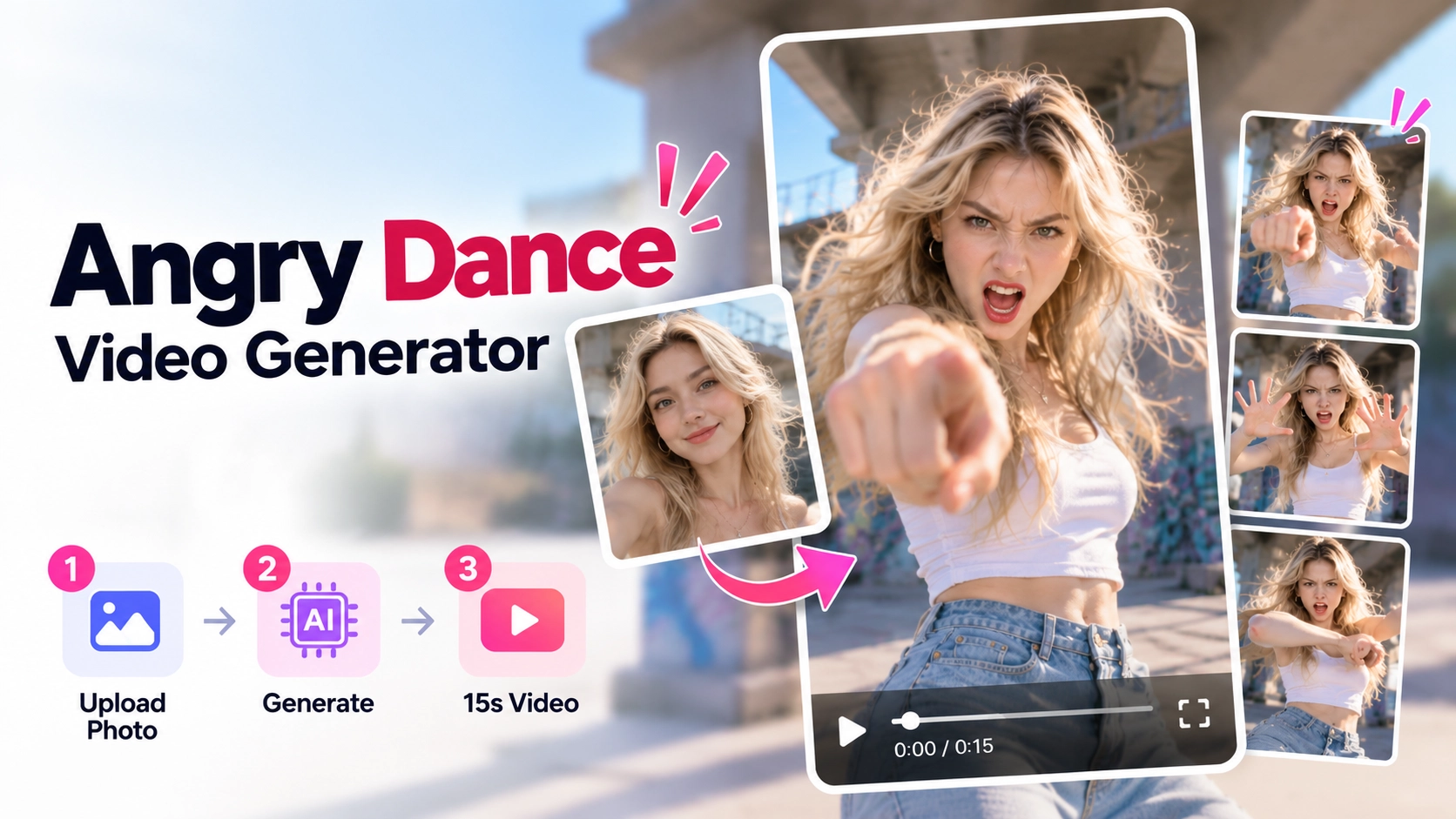
The Angry Dance template pairs an exaggerated frustrated expression with pointing, waving, and an open palm toward the camera. With AIDance, one still photo supplies the person's appearance and the prepared dance reference guides the performance. You do not need to record yourself or write a movement prompt.
Open the AIDance Angry Dance template to preview the routine. The current template is configured for a 15-second, vertical 9:16 video with the accompanying soundtrack. You upload, generate, and review the result directly on that page.
See the effect before choosing a photo
Watch the expressions and hand movements in this example. They are useful details to check again when your own result is ready.
People sometimes call this an “Angry Dance filter.” AIDance uses a photo-to-video workflow: the reference guides the action while your photo identifies the subject. The original face does not need to look angry.
Prepare a clear single-person portrait
Choose a well-lit, front-facing photo with one main subject. A vertical waist-up or full-body composition gives the template room to animate the arms and hands. Keep the face unobstructed and use a simple background where possible.
Avoid motion blur, strong shadows, sunglasses, masks, and hands covering the face. A group photo makes the intended dancer less clear; this template uses one photo of one person. The uploader accepts JPG, PNG, and WebP. Use a photo you have permission to upload.
Make your Angry Dance video step by step
1. Open the template and sign in
Go to the Angry Dance editor. The dance reference and movement instructions are already prepared. Sign in before setting up your generation if you have not done so, then add your portrait using Photo of You.
2. Select a quality tier
The current choices are:
| Tier | Output resolution |
|---|---|
| Lite | 480p |
| Standard | 480p |
| Pro | 720p |
Lite and Standard share a listed resolution, but that does not make their results identical. Open the quality guide beside the selector and review the credit cost for your chosen tier. A higher resolution cannot guarantee correct facial details or hand movements.
3. Check credits and generate on the page
Check the portrait preview and the credit estimate, then select Create my dance video. This starts the generation from the template page; you do not need to open a separate video editor or upload your own dance reference.
Generation uses credits. If your balance is insufficient, review the current AIDance pricing options. Do not assume any welcome credits cover a complete generation, and check the estimate again after changing tiers.
4. Review the complete result before downloading
When the video is ready, play it from beginning to end. Look for changes in the face, fingers merging with clothing, awkward turns, or hands passing through the body. Listen to the soundtrack as well. Download the MP4 when you are satisfied with the result.
If you want another attempt, start by replacing a blurry or obstructed portrait. Changing one input at a time makes results easier to compare; a new generation can still contain mistakes.
Finish the clip for a social post
The vertical format fits TikTok, Instagram Reels, and YouTube Shorts. Add captions or transitions separately in your preferred editor. A before-and-after cut can show how the still photo became the dancer; a short caption about an everyday annoyance gives the expression a context.
Check the downloaded file before posting, including framing, sound, permission to use the person's likeness, and the music conditions for your publishing platform.
Common questions
Do I need an angry expression or a prompt?
No. Start with a clear, natural expression. The template already supplies the dance reference and movement instructions.
Is this a two-person template?
No. Angry Dance is a single-person template. Browse the AIDance template library if you want a different scene or a template that supports two people.
Does selecting a tier start the generation?
No. Choose your tier, review the displayed cost, and submit with the generation button on the template page.
Will the result exactly match the example?
There is no guarantee. Your photo and the generation can affect facial details and motion. Review the finished clip before using it.
Ready to try the routine? Open the AIDance Angry Dance template, prepare one clear portrait, and check your chosen tier and credit cost before generating.
Author